WhatsApp Broadcast: Send Bulk Messages Past 256 Limit

Summarize this article with an AI
 ChatGPT
 Claude
WhatsApp broadcast explained: create a list, the 256-contact limit and the monthly cap, broadcast message samples to copy, and when to use the Business API.
Table of contents (45)
Key takeaways
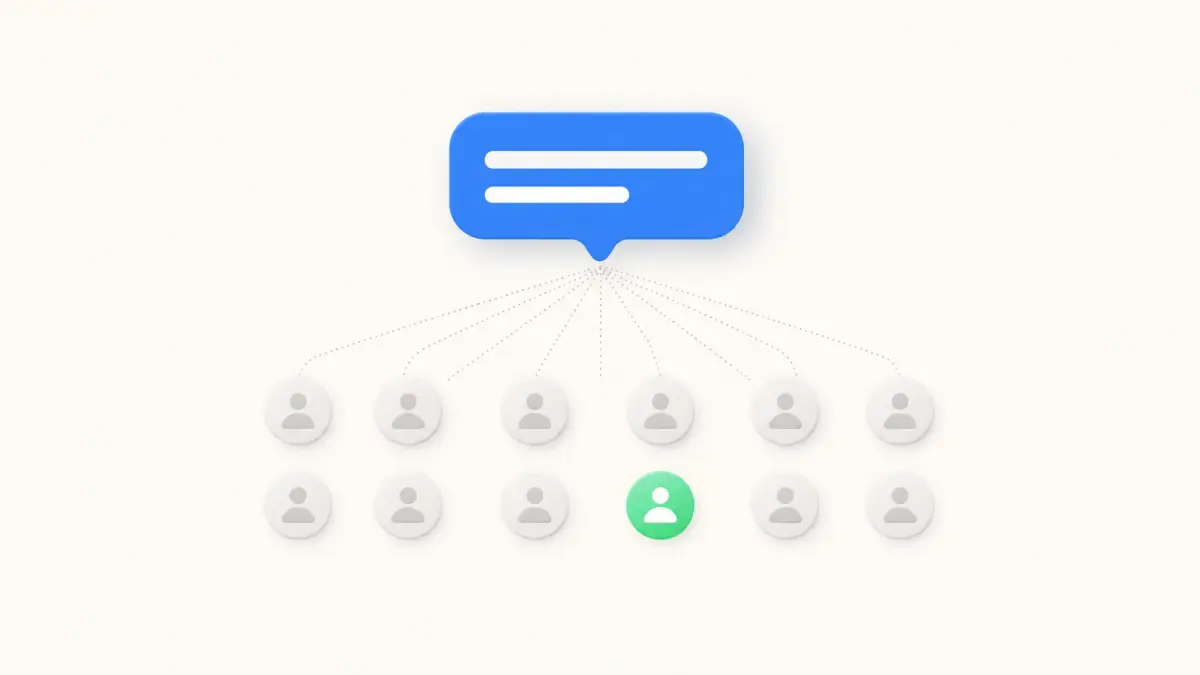
- A WhatsApp broadcast sends one message to many contacts as individual chats, and recipients do not see each other.
- In the app, a list holds 256 contacts at most and only reaches people who saved your number.
- Where WhatsApp applies its monthly limit, 35 broadcast messages per month are sent at no charge.
- Through the WhatsApp Business API, Kanal sends approved template broadcasts to opted-in customers who have not saved your number, segmented with Shopify data.
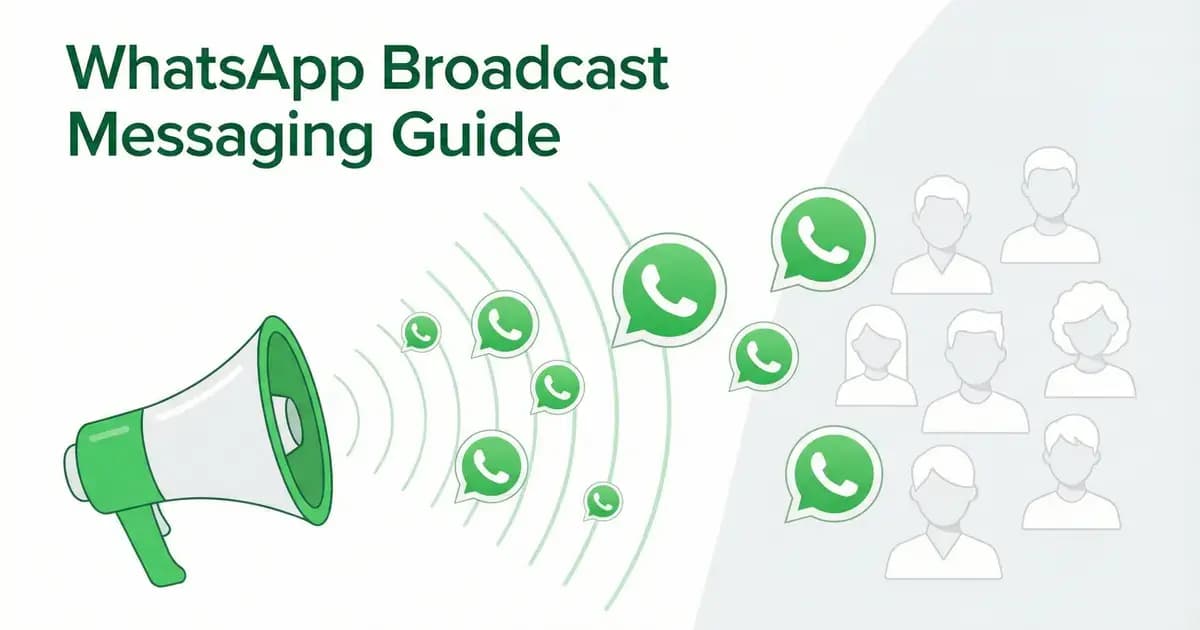
WhatsApp broadcast lets you send one message to multiple contacts at once, without creating a group. For e-commerce brands, it's a direct way to reach customers with promotions, product launches, and personalized offers.
This guide covers everything: how to create broadcasts, the 256-contact limit and how to get past it, broadcast message samples you can copy, and scaling strategies with the WhatsApp Business API.
What Is a WhatsApp Broadcast?
A WhatsApp broadcast is a one-to-many messaging feature that sends your message individually to each recipient. Unlike groups, recipients don't see each other and can reply privately.
Key characteristics:
- Messages appear as individual chats, not a group conversation
- Recipients must have your number saved in their contacts (on the free app)
- Replies are private: only you see them
- Maximum 256 contacts per broadcast list on WhatsApp Business app
- No list-size cap via the WhatsApp Business API: the volume depends on your Meta messaging limit (250 unique recipients per 24 hours for a new business portfolio, then 2,000, 10,000, 100,000 and unlimited)
How to Create a WhatsApp Broadcast List
On WhatsApp Business App (Free)
- Open WhatsApp Business
- Tap the three-dot menu (Android) or Broadcasts (iPhone)
- Select New broadcast or New list
- Select the contacts you want to add (up to 256)
- Tap the green checkmark to create the list
- Type your message and hit Send
Important limitation: Recipients must have your number saved in their contacts. Otherwise, they won't receive the broadcast message.
In the standard WhatsApp app, WhatsApp's Help Center (read on October 7, 2026) gives this path: on Android, Chats, then the menu, then Broadcast lists; on iPhone, Settings, then Broadcast messages, then New List. Broadcast lists are created on the phone: they are not supported on WhatsApp Web or the desktop apps.
On WhatsApp Business API (via Kanal)
With the WhatsApp Business API through Kanal, you can send broadcasts beyond the 256-contact cap, within your Meta messaging limit, without requiring contacts to save your number:
- Create a message template in your Kanal dashboard
- Submit it for Meta approval (a review can take up to 24 hours, per Meta's template documentation)
- Segment your audience based on Shopify data (purchase history, cart value, location)
- Schedule or send the campaign
- Track open rates, clicks, and conversions in real-time
WhatsApp Broadcast vs Group: Key Differences
| Feature | Broadcast | Group |
|---|---|---|
| Privacy | Recipients don't see each other | All members see each other |
| Replies | Private to sender | Visible to all members |
| Contact limit (app) | 256 | 1,024 |
| Contact limit (API) | Your Meta messaging limit (250 per 24 hours at the start, up to unlimited) | N/A |
| Must save number | Yes (app) / No (API) | No |
| Admin control | Full | Shared |
| Use it for | Marketing campaigns | Community building |
For marketing purposes, always use broadcasts over groups. Groups can feel spammy and violate privacy expectations. Broadcasts maintain the personal 1-to-1 feeling that drives engagement.
How to Get Past the 256-Contact Limit
The WhatsApp Business app limits broadcast lists to 256 contacts. Here's how to scale:
Option 1: Multiple Broadcast Lists (Free, Manual)
Create multiple broadcast lists of 256 contacts each. Tedious but works for small businesses with <1,000 contacts.
One caveat: WhatsApp is introducing a monthly broadcast limit in some countries. Where it applies, the Help Center gives 35 broadcast messages per month at no charge, and you can check your count under Settings, then Broadcasts (About broadcast limits, read on October 7, 2026).
Option 2: Paid broadcasts in the WhatsApp Business app
In some countries, the WhatsApp Business app offers paid marketing messages, which WhatsApp now calls business broadcasts: you compose a message with media and a button, pick the audience, and pay for the messages that are delivered (How to create and send a marketing message). It remains a manual tool tied to one phone, without your store's data.
Option 3: WhatsApp Business API (Recommended)
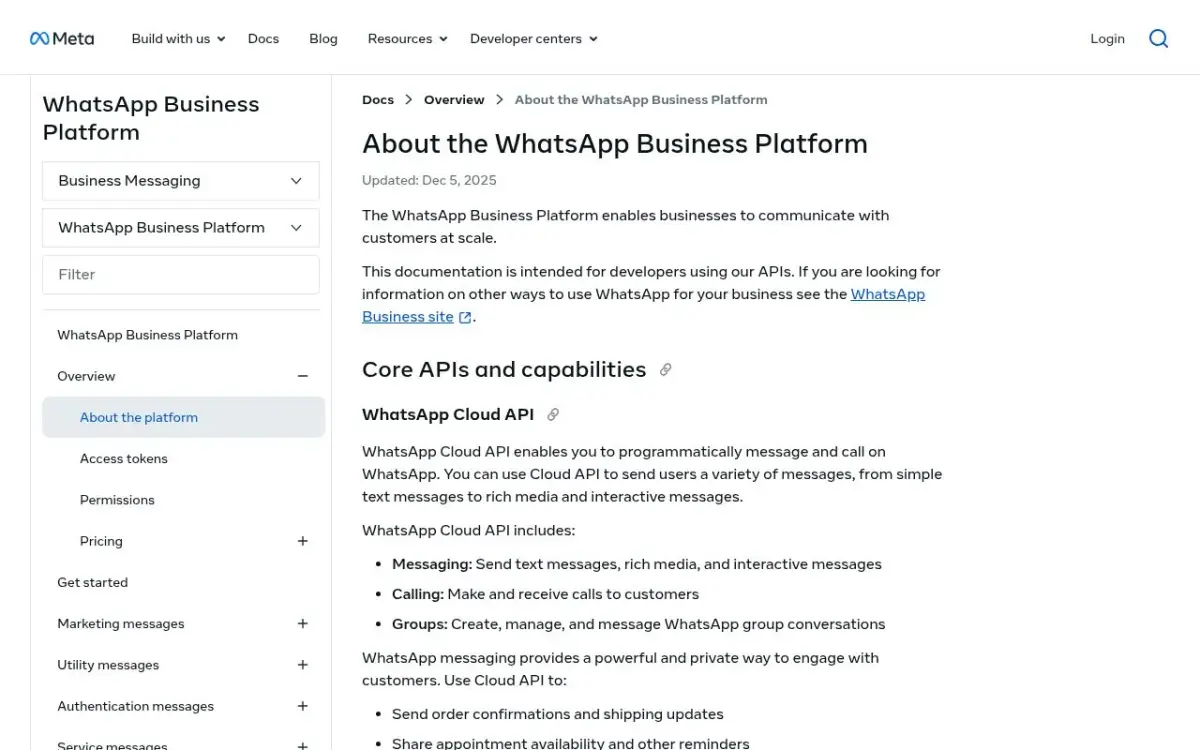
The WhatsApp Business API removes the 256-contact limit entirely. With platforms like Kanal:
- Send to as many opted-in contacts as your Meta messaging limit allows
- No need for contacts to save your number
- Templates approved by Meta, required to message outside the 24-hour window
- Smart segmentation based on Shopify customer data
- Analytics to track opens, clicks, and revenue
For example, Arntreal, a fashion brand featured in our case studies, used targeted WhatsApp broadcasts built with Kanal's campaign builder to drive 3x higher engagement than email and a 27% uplift in repeat purchases.
WhatsApp Broadcast Best Practices
1. Segment Your Audience
Don't send the same message to everyone. With Klaviyo integration, segment your WhatsApp lists by:
- Purchase history: VIP customers get exclusive offers
- Cart value: High-value cart abandoners get different messaging
- Location: Country-specific promotions and shipping info
- Engagement: Active openers vs dormant subscribers
2. Personalize Every Message
Use dynamic variables to personalize:
- Customer's first name
- Last purchased product
- Cart contents (for abandoned cart recovery)
- Recommended products based on browsing history
3. Time Your Sends Strategically
Starting points to test for e-commerce WhatsApp broadcasts (then keep what works for your audience):
- Weekdays: 10am-12pm and 6pm-8pm (local time)
- Flash sales: Send 2-4 hours before the sale starts
- Cart reminders: 1 hour, 24 hours, and 72 hours after abandonment
- Back-in-stock alerts: Immediately when inventory is replenished
4. Include Clear CTAs
Every broadcast should have a single, clear call-to-action:
- "Shop Now" button linking to your product page
- "Complete Your Order" for cart recovery
- "Get 20% Off" for promotional campaigns
- "Track Your Order" for order notifications
5. Respect Opt-in/Opt-out
Always provide an easy way to unsubscribe. This isn't just good practice: it's required by Meta's WhatsApp Business Policy. Non-compliance can get your number banned.
WhatsApp broadcast message samples you can copy
The samples below are written for e-commerce. The first one is plain text, for a broadcast list in the app. The others use buttons, shown in square brackets, which require a template on the WhatsApp Business API.
Plain-text sample for a broadcast list
Hi {customer_name}, it's {your_name} from {store_name}.

Our winter collection is live, and subscribers get early access until Friday: {link}

Reply STOP if you'd rather not receive these messages.
Back in stock
Good news {customer_name}: {product_name} is back in stock.

It sold out fast last time, so we wanted you to know first.

[Get Yours]
Flash Sale Template
Hi {customer_name}! 🔥

Our biggest sale of the year starts NOW.

Up to 50% off everything for the next 24 hours.

[Shop the Sale] [Browse New Arrivals]
Cart Recovery Template
Hey {customer_name},

You left something amazing in your cart:
{product_name} : {product_price}

Complete your order now and get free shipping!

[Complete My Order]
New Product Launch
{customer_name}, you're first to know 👀

We just launched {product_name}, and we think you'll love it based on your purchase of {last_product}.

Limited stock available.

[Discover Now] [Save for Later]
VIP Exclusive
{customer_name}, this is VIP-only 🖤

As one of our top customers, here's your exclusive early access + an extra 15% off with code VIP15.

Valid for 48 hours.

[Shop VIP Access]
For more templates and automated flows, check our WhatsApp campaign builder with drag-and-drop flow editor.
Broadcast Analytics: What to Track
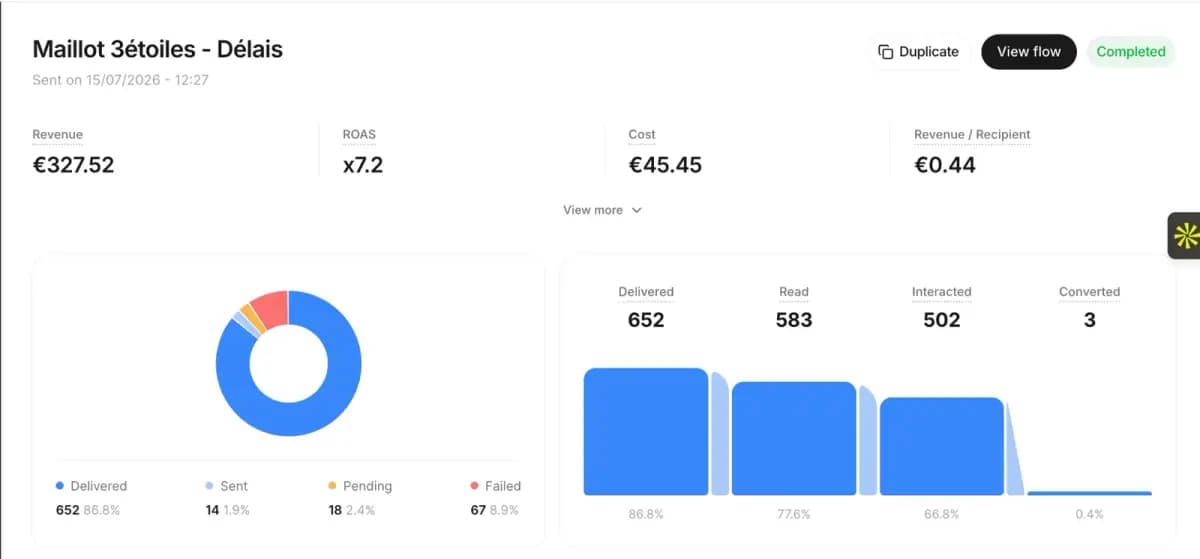
With Kanal's analytics dashboard, monitor these KPIs. Your first broadcasts give you the baseline; compare each new send against it:
| Metric | How to calculate | If it moves the wrong way |
|---|---|---|
| Delivery Rate | Delivered / sent | Check contact quality, verify numbers with our number checker |
| Open Rate | Read / delivered | Improve first line (preview text) |
| Click-Through Rate | Clicks / delivered | Better CTA, stronger offer |
| Conversion Rate | Orders / clicks | Landing page optimization |
| Opt-out Rate | Opt-outs / delivered | Reduce frequency, improve relevance |
| ROAS | Attributed revenue / send cost | Better segmentation, higher-value offers |
Calculate your expected return with our free ROAS calculator.
Common Broadcast Mistakes
Even with great copy, broadcasts can underperform when these mistakes creep in.
Sending to contacts who never saved your number
On the free app, broadcast messages only deliver to contacts who have saved your business number. If they haven't, your message silently fails. Always include a "save our number" CTA in your welcome flow before broadcasting.
Treating broadcasts like email blasts
Broadcasts in WhatsApp feel personal because each recipient sees the message as a one-on-one chat. Generic "Hi everyone" copy underperforms badly. Use merge fields ({first_name}, {city}, {last_product_viewed}) to keep the conversational tone.
Skipping the opt-in confirmation
Broadcast list members must have explicitly opted in to your messages. Without a documented opt-in (date, source, IP), you risk being flagged for spam, which damages your quality rating and can ban your number.
Sending too often
Daily broadcasts to the same list wear it out: opt-outs and blocks climb, and blocks hurt your quality rating. Once or twice a week is a sensible starting point for an e-commerce brand. Match your cadence to your purchase frequency.
Using only text
A text-only broadcast asks the customer to tap before they have seen the product. Include at least one product image or branded GIF (or a video or carousel), and check the difference in clicks on your own list.
No clear single call-to-action
Multiple CTAs ("Shop now / See offer / Browse / Contact us") create decision paralysis. Pick one primary action per broadcast.
Ignoring the 24-hour window
Replies to a broadcast open a 24-hour customer service window where you can answer with free-form messages, no template needed. Without a follow-up, that window closes unused. Use a Kanal automation to schedule a follow-up within the window.
How to Search and Manage Broadcast Lists
Finding a broadcast list
- Open WhatsApp Business
- Go to Chats tab
- Tap Broadcast Lists at the top (iOS) or the three-dot menu > New broadcast (Android)
- Your existing lists appear with member counts
Editing a broadcast list
- Add members: Open the list > tap the list name > Edit recipients
- Remove members: Same path, deselect contacts
- Delete list: Long-press the list > Delete
Broadcast list limitations
- You can create unlimited broadcast lists on the free app
- Each list maxes at 256 contacts
- No scheduling: messages send immediately
- No analytics: you can't track opens or clicks
For scheduling, segmentation, and analytics, upgrade to Kanal's WhatsApp Business API.
FAQ
How many contacts can I add to a WhatsApp broadcast?
On the WhatsApp Business app, maximum 256 contacts per broadcast list. Via the WhatsApp Business API (through platforms like Kanal), there's no limit.
Can I send a broadcast if the contact hasn't saved my number?
On the free WhatsApp Business app, no, the recipient must have your number saved. Via the WhatsApp Business API, yes, you can send template messages to any opted-in contact regardless.
How do I know if someone read my broadcast?
On the free app, you can see delivery and read receipts for individual chats, and our guide to WhatsApp read receipts and blue ticks explains what each tick state actually proves. With Kanal's analytics, you get aggregate open rates, click rates, and conversion tracking.
What is a good WhatsApp broadcast message sample?
A good broadcast message is short, names the customer, makes one offer and ends with one action. For example: "Hi Sarah, our winter collection is live. As a subscriber you get early access until Friday: [link]. Reply STOP to unsubscribe." On the free app you send it as plain text to a broadcast list. On the WhatsApp Business API it becomes a template with a button.
Is there a limit on how many broadcast messages I can send?
On the WhatsApp app, a broadcast list holds up to 256 contacts and you can create as many lists as you like. WhatsApp is also rolling out a monthly limit in some countries: where it applies, its Help Center gives 35 broadcast messages per month at no charge (read on October 7, 2026). On the WhatsApp Business API there is no list size, and Meta charges each delivered marketing message.
Is WhatsApp broadcast the same as WhatsApp newsletter?
They're similar concepts. A "broadcast" is the technical feature. A "WhatsApp newsletter" is a regular broadcast series sent on a schedule. With the WhatsApp Business API, you can schedule automated newsletter-style broadcasts.
Can I send broadcasts to international numbers?
Yes. WhatsApp works globally. With the API, you can target customers in any country. Keep in mind that Meta charges each delivered template message at a rate set by the recipient's country and the template category (promotional broadcasts are marketing templates), detailed in the official pricing grid and in our WhatsApp Business pricing guide.
Conclusion
WhatsApp broadcast lets you reach your e-commerce customers with personalized, rich media messages in the app they already use to chat. While the free app works for small businesses, the WhatsApp Business API through Kanal unlocks larger sends, automation, and detailed analytics.
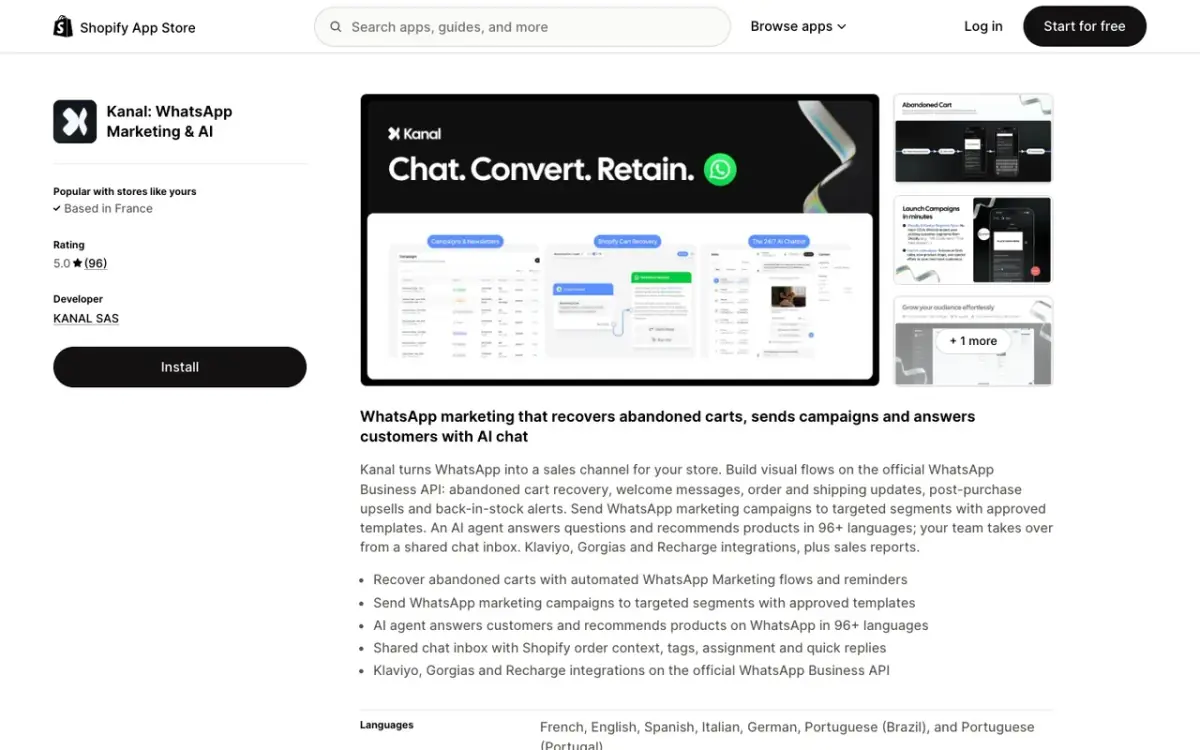
Start broadcasting to your customers today. Install Kanal on Shopify to send your first campaign, or book a demo to see the campaign builder in action on your store.
Create your click-to-chat link with our WhatsApp Link Generator to start growing your subscriber list.
Further Reading
- WhatsApp Newsletter Guide: turn your broadcasts into a recurring newsletter strategy
- WhatsApp Business API Guide: understand the API that powers broadcasts at scale
- WhatsApp Marketing for E-commerce: the complete guide to WhatsApp commerce
- Best Shopify SMS Apps: compare messaging apps for your Shopify store
See Kanal on your own store
- Your campaigns and cart reminders on WhatsApp, starting from your own store
- Post-purchase offers, back-in-stock alerts, then the AI agent that advises your customers
- You leave with the plan that fits and its price

- brands
- 500+
- to set up
- 5 min
- open rate on WhatsApp
- +90%
5/5 on the Shopify App Store (132 reviews)

Nicolas helps e-commerce brands grow revenue with WhatsApp marketing. With deep expertise in Shopify ecosystems and conversational commerce, he shares proven strategies for abandoned cart recovery, broadcast campaigns, and AI-powered customer engagement.
Glossary terms in this article
Quick definitions for the WhatsApp Business terms used above.
WhatsApp Business App
The WhatsApp Business App is a free mobile application designed for small businesses to chat with customers, with a catalog, quick replies, and automated greeting messages.
Read full definitionMessaging Limits
Messaging limits are the maximum number of unique WhatsApp users a business can message outside a customer service window within a moving 24-hour period. A new business portfolio starts at 250, then moves to 2,000, 10,000, 100,000 and unlimited.
Read full definitionWhatsApp Web
WhatsApp Web is the official browser client that mirrors a WhatsApp account on a computer, so users can read and send messages with a desktop keyboard.
Read full definitionMessage Template
A message template is a pre-written WhatsApp message that Meta approves before a business can send it. Templates are the only messages a business can send outside the 24-hour customer service window, for example to start a conversation or run a campaign.
Read full definitionCustomer Service Window (24-hour window)
The customer service window is a 24-hour timer that starts when a WhatsApp user messages or calls a business. While it is open, the business can reply with free-form messages; once it closes, it can only send approved message templates.
Read full definitionSegmentation
Segmentation is the practice of splitting a WhatsApp contact list into groups based on traits like purchase history, behavior, or engagement, so each group receives messages that are actually relevant.
Read full definitionOpt-out
A WhatsApp opt-out is a person's request to stop receiving messages from a business on WhatsApp. WhatsApp's Business Messaging Policy requires businesses to respect every such request, whether it is made on WhatsApp or elsewhere.
Read full definitionOpt-in
A WhatsApp opt-in is the permission a person gives a business to send them messages on WhatsApp. WhatsApp's Business Messaging Policy requires it before any message: the business must have the person's phone number and their agreement to hear from that business.
Read full definitionQuality Rating
The quality rating is the score WhatsApp gives a business phone number, and each of its message templates, based on how recipients react: blocks, reports and read rates. It is shown as high, medium or low (green, yellow, red).
Read full definitionMarketing Template
A marketing template is a WhatsApp message template used for promotion: offers, product launches, back-in-stock alerts or cart reminders. It can be sent at any time to customers who opted in, and Meta charges each delivered message at the marketing rate of the recipient's country.
Read full definitionwa.me Link (Click-to-Chat)
A wa.me link is WhatsApp's official click-to-chat URL. Opening it starts a conversation with a specific number, without the visitor saving the contact first.
Read full definitionSuggested articles
Black Friday WhatsApp Marketing: 6-Step Shopify Playbook
The Black Friday WhatsApp marketing playbook for Shopify: pre-BF list building, broadcast timing, cart recovery, templates and KPIs for 2026.
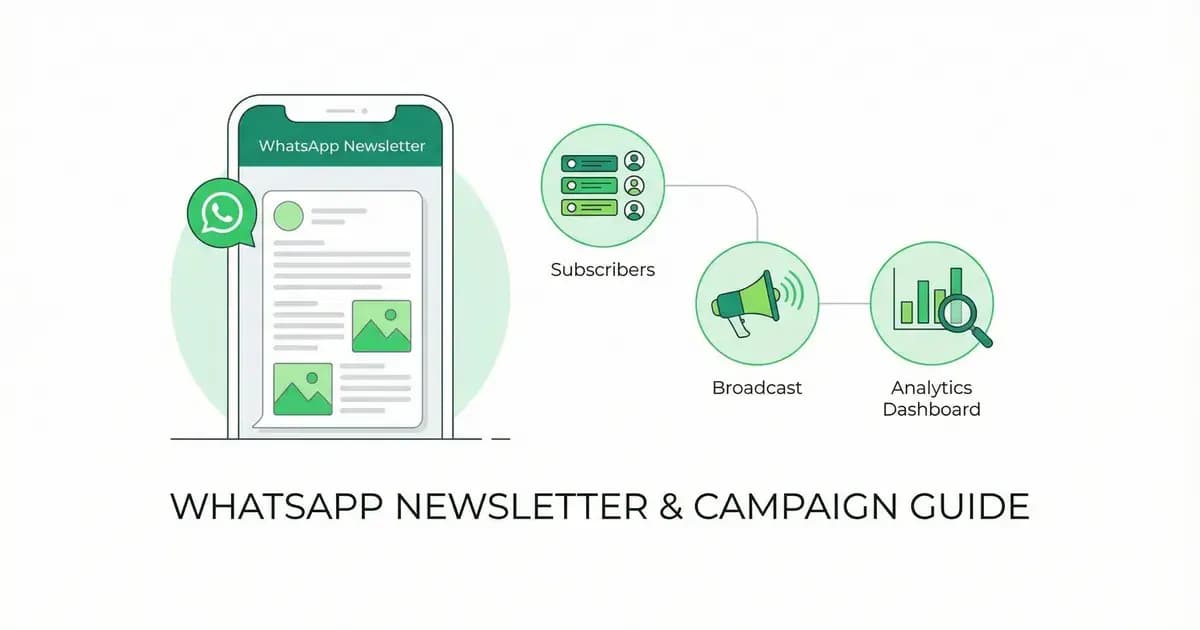
WhatsApp newsletter: how to send one, cost and rules
A WhatsApp newsletter is a regular message sent to subscribers who opted in. Three ways to send one, what each costs, the opt-in rules and templates.
50+ WhatsApp Message Templates for Ecommerce: Copy and Paste (2026)
53 WhatsApp message templates ready to copy and paste: abandoned cart, order updates, review requests, winback and promos. With Meta categories.
WhatsApp in Shopify Messaging: Pricing, Features and Limits
WhatsApp is live in Shopify Messaging: what the channel does, per-message prices by country ($0.106 UK, $0.172 France), limits and the US rule, October 2026.